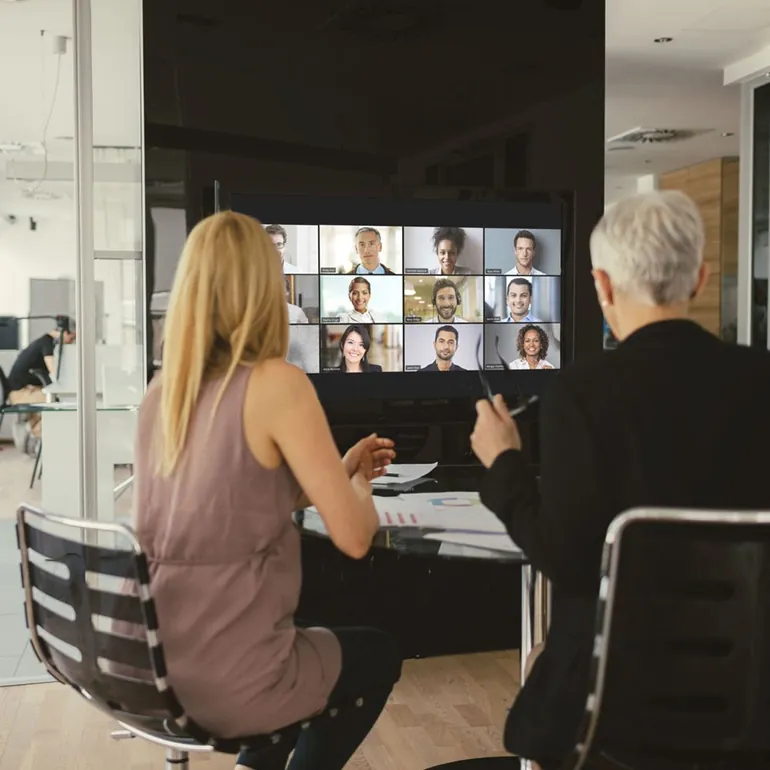


How to run a live event with Zoom Webinar: step by step, from preparation to follow-up
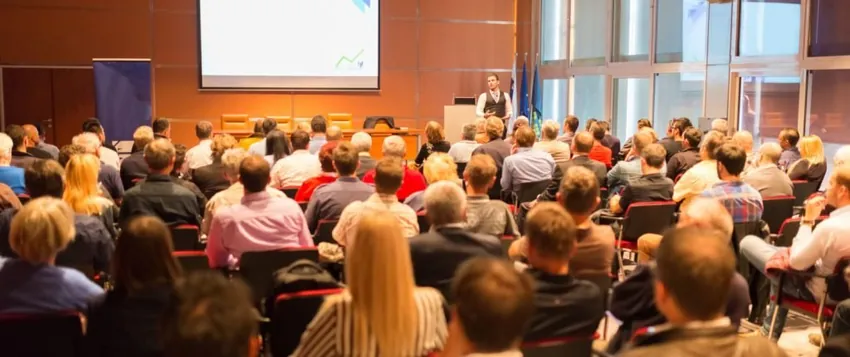
The difference between a meeting and a webinar lies less in the number of people than in how it is set up. In a meeting everyone can speak and be seen; in a webinar a small number of people are on stage and a large crowd are the audience. Viewers ask questions, answer polls and write in the chat, but they do not interrupt your broadcast.
Zoom Webinar is the solution that brings this setup together on a single platform. Below we set out how you can run an event with it, from preparation to follow-up.
1. Before the event: set the goal and the roles
Start with three questions:
- Who will be watching? Customers, dealers or students? The audience's expectations determine the tone of the content.
- Who will be on stage? Hosts and speakers join the broadcast as "panellists"; everyone else is an attendee.
- What do you want to happen at the end of the event? A registration, a demo request, feedback or simply sharing information.
These answers shape everything from the registration page to the poll questions.
2. Registration page and reminders
In Zoom Webinar you can customise your webinar registration page and your reminder emails. This is the first step in presenting your brand before the broadcast starts. A few suggestions:
- Describe the value of the event in a single sentence on the page: "What will they learn?"
- Keep the registration form short; every extra field you ask for lowers the registration rate.
- Schedule reminder emails for the day before the event and a few hours before it.
- Turn on the social sharing buttons: registered people can take the event to their own networks.
3. Brand the broadcast
You can adapt the live video watermark to your own brand and create your own landing page to send attendees to when the event ends. This way, when viewers close the broadcast they see not a standard screen but a page you have prepared: a registration form, product information or a replay link.
4. Prepare the panellists
A panellist is a person who can share audio and video. During the event you can also promote an attendee to panellist; this is useful, for example, when you want to give the floor on air to a customer who asks a question.
Always do a short rehearsal before the event:
- Test the audio and camera
- Try out presentation sharing
- Make it clear who will manage the questions and who will watch the chat
5. Interaction: chat, Q&A, polls
The strength of a webinar lies in involving the audience in the broadcast. You can turn on in-session chat, answer the questions that arrive in the Q&A section and moderate them, and let attendees raise their hands and answer polls.
6. After the event: collect feedback
When the webinar ends, the real work begins. With a post-event survey you can collect attendees' feedback and, by directing them to your own landing page, get them to take the next step. Survey results are a cheap and reliable source for deciding the topic and length of your next event.
Checklist
- Are the target audience and the expected outcome clear?
- Are the registration page and reminder emails ready?
- Has the live broadcast been branded?
- Have the panellists and moderator been chosen and a rehearsal held?
- Are the post-event page and survey ready?
If you are going to run an event for hundreds of people, you can check which plan is sufficient in our plan comparison article. For a webinar licence and event planning, contact us and we will prepare a quote to suit your needs. If you are choosing a system in general, our selection guide will help too.